
Download Satscape – Free Satellite Tracker for Windows, macOS & Linux
Overview – What Is Satscape and Who Is It For?
Satscape is a cross‑platform desktop application that lets you monitor more than 8,000 active satellites and space debris in real time. The tool promises a “NASA‑style” experience, displaying orbital paths on a 2‑D or 3‑D globe, issuing voice alerts when a satellite passes overhead, and even allowing you to zero in on the International Space Station (ISS) or any other object in Earth orbit. While the concept sounds exciting for hobbyists, educators, and satellite‑communication professionals, the execution can feel technical and occasionally opaque for newcomers.
The program is built on a Java downloader that pulls the latest data from the Satscape database, then launches a Java‑based UI that greets you with a robotic voice guiding the initial configuration. If you are comfortable with a little setup and enjoy diving into orbital mechanics, Satscape can become a valuable reference. If you just want a quick visual of the ISS streaking across the sky, you may find the learning curve steep.
In this review we’ll explore the core features, walk through the installation process, examine system compatibility, and weigh the pros and cons so you can decide whether the download is worth your time.
Key Features – What Satscape Actually Offers
- Extensive Satellite Database – Tracks over 8,000 satellites, including commercial, military, scientific, and even pieces of space junk.
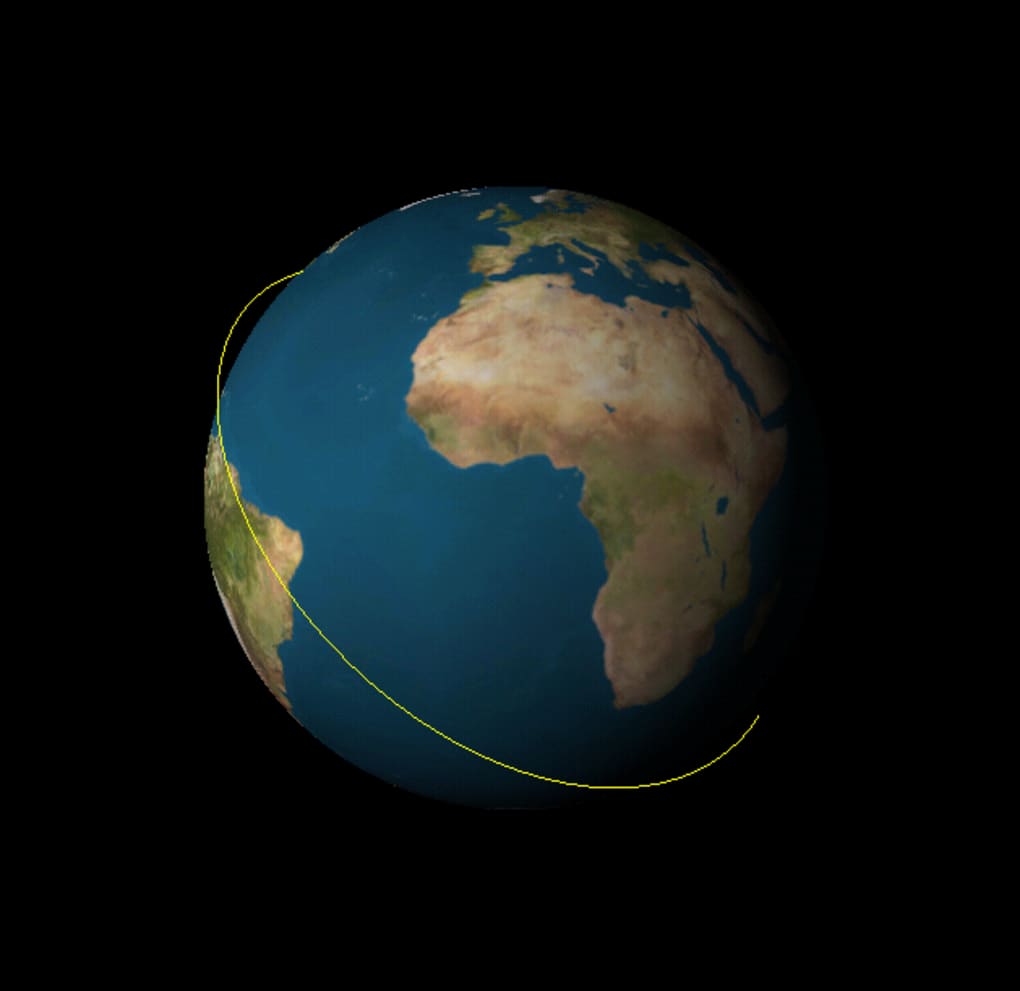
- Real‑Time Orbital Visualization – Switch between 2‑D map view and 3‑D globe view to see objects orbiting the Earth in live motion.
- Voice Alerts – An optional spoken notification warns you when a selected satellite is about to appear above your location.
- Custom Location Settings – Input latitude, longitude, and altitude to tailor the sky view to your exact spot on the planet.
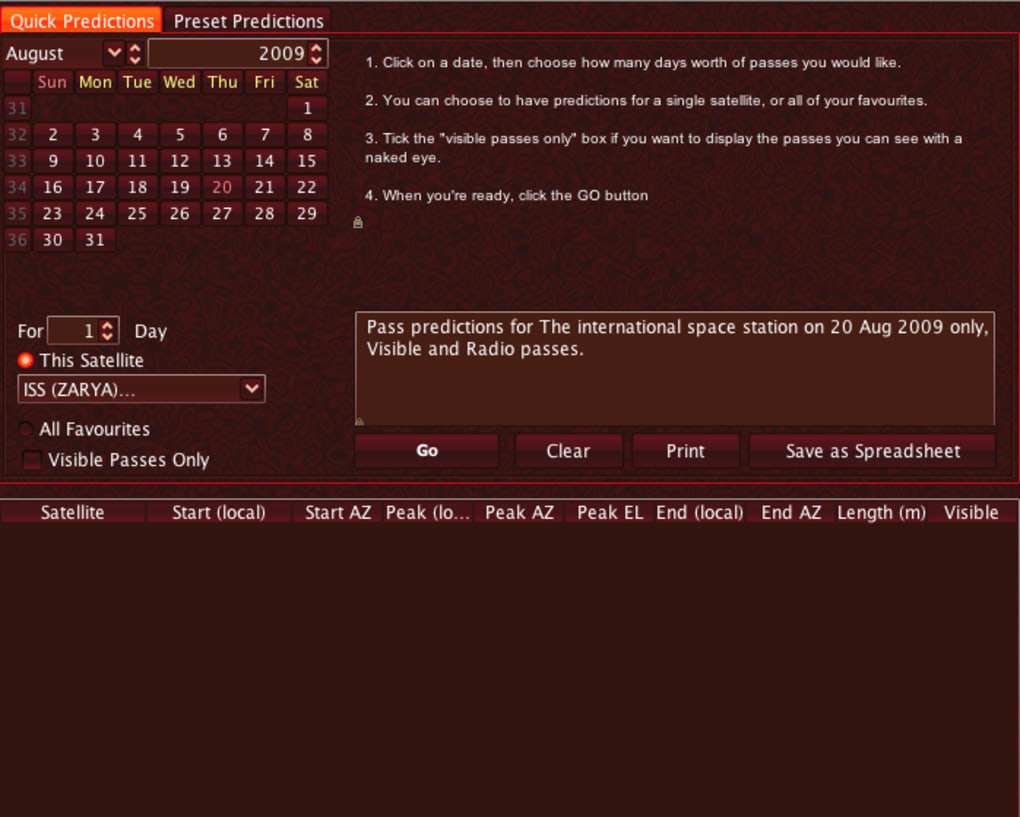
- Satellite Pass Predictions – Detailed tables list upcoming passes, elevation angles, and visibility windows for each tracked object.
- Data Export – Export orbital elements (TLE files) for use in other astronomy software or for offline analysis.
- Cross‑Platform Support – Works on Windows, macOS, and Linux thanks to the Java runtime.
- Free Core Version – The basic tracker is available at no cost, with optional paid upgrades for advanced analytics.
Beyond the bullet list, Satscape includes a handful of hidden utilities that can be valuable for engineers. For example, the “Signal Strength” overlay approximates radio line‑of‑sight, which could help a ground‑station operator decide when to point an antenna. The application also logs each satellite pass, allowing you to build a historical record of visibility. However, many of these advanced functions are buried behind secondary menus and lack clear documentation, meaning users must experiment to unlock their full potential. Overall, the feature set is ambitious, aiming to serve both casual stargazers and technical users alike.
Installation & First‑Run Guide – Getting Satscape Up and Running
Downloading Satscape is straightforward, but the installation process does require a few extra steps compared with typical Windows installers. First, visit the official Satscape website and click the “Download for Windows/macOS/Linux” button. The link triggers a small Java‑based downloader (satdownloader.jar) that contacts the Satscape server, pulls the latest application bundle, and extracts it to a folder of your choosing.
Because the program runs on Java, you’ll be prompted to grant “unrestricted access” to your file system. This request is necessary for the app to write configuration files and cache satellite data, but it can feel invasive if you’re security‑conscious. After confirming the permissions, the installer finishes and places a desktop shortcut labeled “Satscape Tracker.”
Launching the shortcut opens a splash screen with a synthetic voice that walks you through the initial setup. The first screen asks you to choose a language and whether you want voice alerts enabled. Next, you’ll see a “Location” tab where you must manually type your latitude, longitude, and elevation.
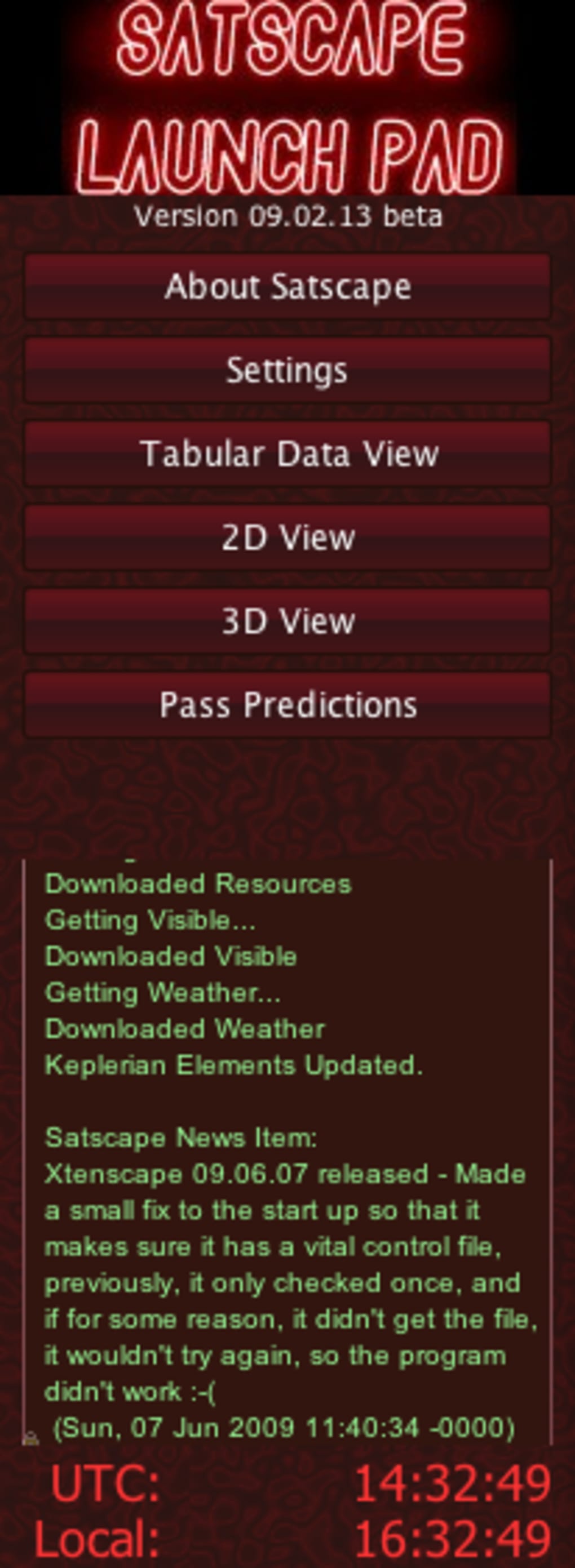
The UI does not automatically detect your position, so you’ll need to look up the coordinates (Google Maps works fine). Once saved, click either the “2‑D View” or “3‑D View” button. The 2‑D view presents a flat world map with satellite tracks drawn as colored lines; the 3‑D view renders a rotating globe that you can spin with your mouse.
If everything is configured correctly, the ISS should appear as a bright marker moving across the screen, and a short voice cue will announce its next pass.
While the basic workflow is functional, the lack of a step‑by‑step tutorial inside the app can leave new users feeling lost. The settings panel includes numerous advanced options—such as TLE update frequency, visual themes, and custom alert sounds—without any inline explanations. For the best experience, we recommend reading the online FAQ (linked from the “Help” menu) before diving into the UI. Once you become comfortable with the navigation, Satscape proves to be a surprisingly stable and low‑resource program, even on older hardware.
Compatibility, System Requirements, and Pros & Cons
Satscape runs on any operating system that supports Java 17 or later, including Windows 10/11, macOS 10.15+ (Catalina and newer), and most modern Linux distributions (Ubuntu, Fedora, Debian). The application itself is lightweight, typically using under 150 MB of RAM and less than 50 MB of disk space after installation. Because it relies on a Java runtime, you may need to install or update the JRE if your system does not already include it. The developer provides a bundled JRE for Windows, but macOS and Linux users should verify that java -version reports 17 or higher.
Pros
- Extensive satellite database covering both operational craft and debris.
- Real‑time visualization in both 2‑D and 3‑D modes.
- Voice alerts add a fun, hands‑free element for hobbyists and professionals.
- Free core version with optional paid upgrades for power users.
- Cross‑platform support makes it accessible to a wide audience.
Cons
- Initial setup requires manual entry of location data and Java permissions.
- Documentation is sparse; many features are hidden behind unclear menus.
- Voice prompts can be intrusive if not disabled.
- Limited visual flair—only two satellites are highlighted by default, making the globe feel empty.
- Requires internet connection for the first TLE download and periodic updates.
Overall, Satscape shines for users who appreciate detailed orbital data and are willing to invest a little time learning the interface. Casual observers may find the experience underwhelming compared with more polished astronomy apps that offer richer graphics and automatic location detection. If you’re comfortable navigating a slightly technical UI and value the ability to track hundreds of objects, the pros outweigh the cons.
FAQ – Frequently Asked Questions About Satscape
-
Is Satscape really free, or are there hidden costs?
The core satellite tracker is completely free. The developer offers optional paid modules for advanced analytics, such as detailed signal‑strength modeling and batch TLE export. These upgrades are not required for basic tracking.
-
Do I need a constant internet connection?
Satscape needs an internet connection to download the initial Two‑Line Element (TLE) data set and to receive periodic updates (typically every 12 hours). Once the data is cached, you can run the program offline, but you won’t see the latest orbital changes.
-
Can I track the International Space Station only?
Yes. The ISS is pre‑selected in the default view, and the voice alert will announce each pass over your location. You can also add other satellites manually from the full list if you wish.
-
Is the Java downloader safe?
The downloader is signed by the developer and only accesses the official Satscape server. However, it does request full read/write access to your user folder, which is required for configuration files. If you are cautious, you can inspect the JAR file with a tool like jarsigner before executing.
-
Will Satscape work on my older laptop?
Because the application is Java‑based and uses modest graphics, it runs comfortably on most machines released within the last ten years. The key requirement is a recent Java runtime; older systems lacking Java 17 may need an upgrade.
Conclusion – Should You Download Satscape?
Satscape delivers on its promise of real‑time satellite tracking with a surprisingly extensive database and useful voice alerts. The software is free, cross‑platform, and lightweight, making it an attractive option for students, amateur astronomers, and satellite‑communication enthusiasts. Its main drawbacks are a somewhat steep learning curve, limited visual polish, and the need to grant Java unrestricted access during installation.
If you are comfortable tweaking settings and value detailed orbital data over flashy graphics, Satscape is worth the download. For casual sky‑watchers who simply want to know when the ISS will fly overhead, a smartphone app might be more convenient. Ready to give Satscape a try?
Click here to download the latest version and start tracking the world’s satellites today.
Pros: Massive satellite database, real‑time 2‑D/3‑D views, free core version, voice alerts.
Cons: Manual location entry, sparse documentation, limited graphics, Java permission prompts.







